The box
Tiny Jukebox is a music box for children. Place a tag on the box, and the album of the tag continues where it stopped last time. The box is operated with four buttons; an LED shows its state. Albums, tags and radio stations are managed on a web page. If there are several boxes or a library in the home network, the boxes share albums, tags and stations (section 13).
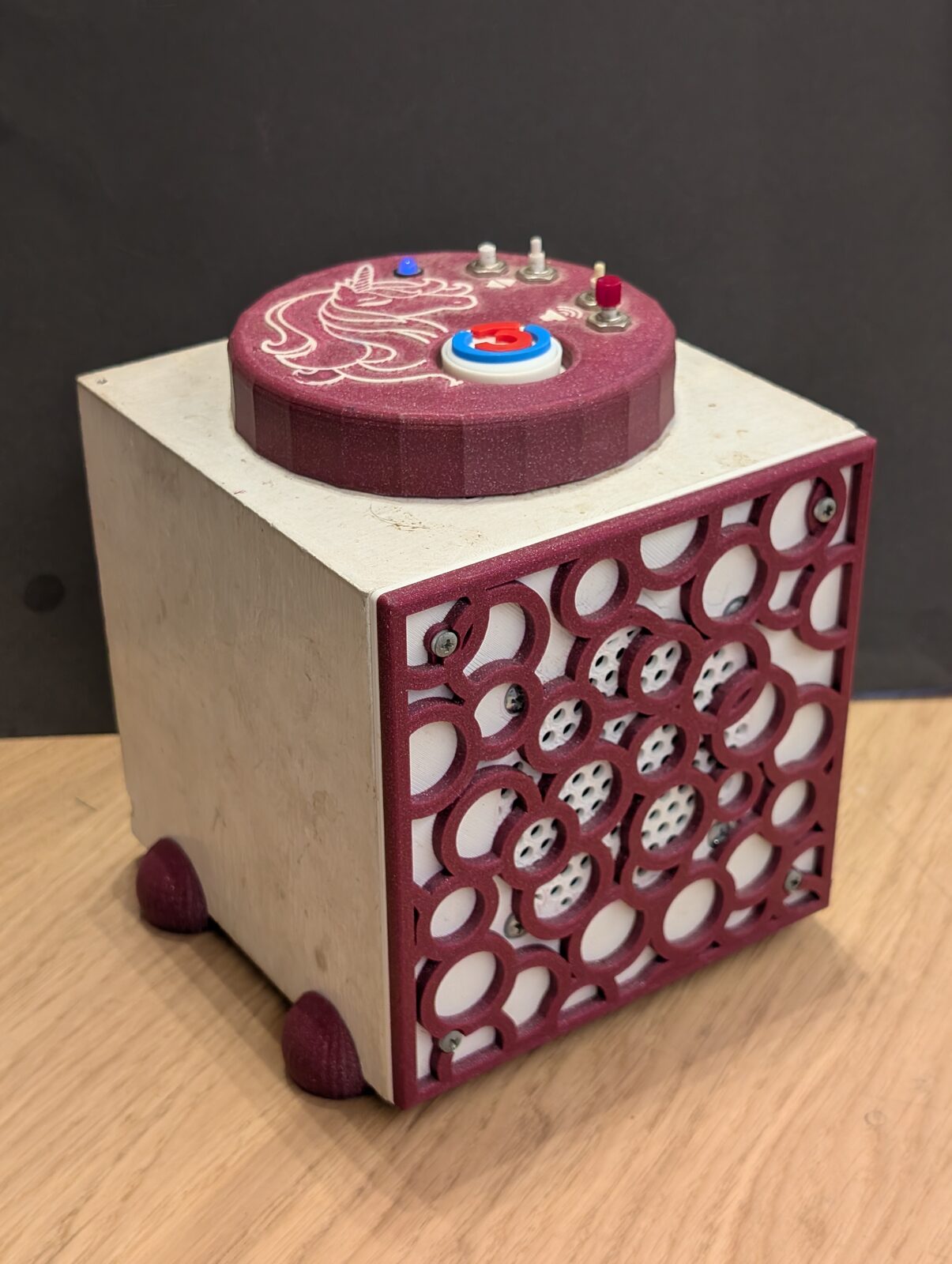
The essentials on one card: quick guide. Setting up and running boxes and the library: administration.
1. Terms
| Term | Meaning |
|---|---|
| Tag | what is placed on the box: a disc, a figure, a card – anything with an RFID chip. The box recognizes the chip by its unique number (UID), e.g. 04:1A:2B:3C:4D:5E:6F, not the object. |
| Album | a folder with MP3 files and a list of its tracks (playlist) |
| Radio station | an internet radio stream; needs WLAN |
| Spotify | an album, a playlist, an audiobook or a podcast of Spotify; needs the internet and a Spotify Premium account |
| Linking | assigning an album, a radio station or an entry of Spotify to a tag |
| Cover | the picture of an album, a radio station or an entry of Spotify. A tag shows the cover of what it is linked to. |
| Progress | the saved position of an album, per tag |
| Library | a program in the home network (e.g. on the NAS) that holds albums, tags and stations for all boxes |
2. Operating the box
2.1 Switching on and off
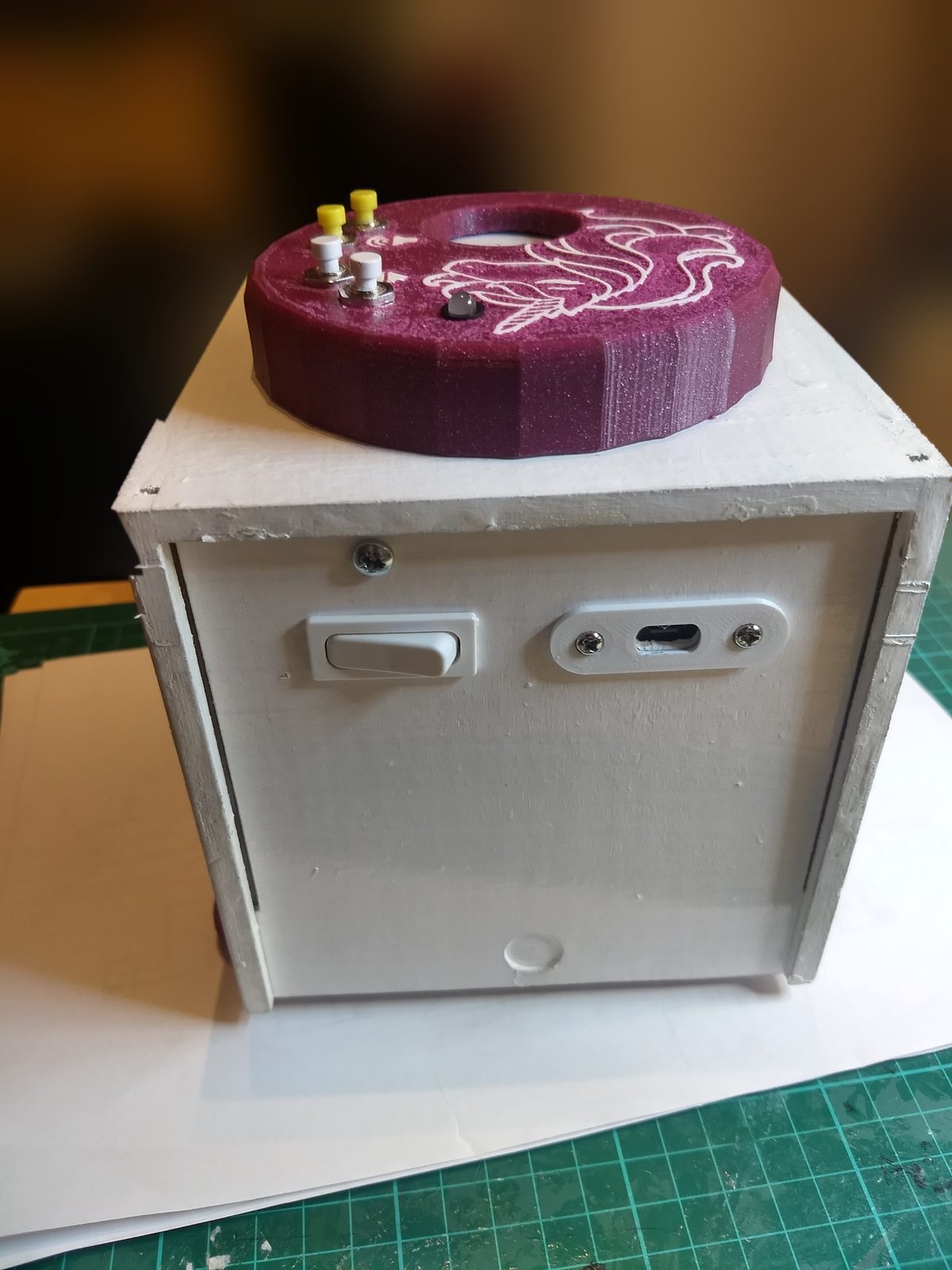
Inside the box a power bank supplies the power. On the back: the switch (left) connects and cuts it, the USB socket (right) charges the power bank.
- Switching on: with the switch. During the start the LED is red, then magenta. When it is green, the box is ready.
- Switching off: with the switch. This is allowed at any time, also while an album plays. The box saves the position every 5 seconds; next time it continues a few seconds earlier at most.
- The box also plays without WLAN. Only the web page and radio stations need it.
2.2 Tags
| Action | Effect |
|---|---|
| Place a tag on the box | The album continues at the saved position. A radio station starts to play. |
| Take the tag off | Playback stops, the position is saved. |
| Place another tag | Its album plays. |
| Place a new, unknown tag | The LED is yellow. The box remembers the tag; it is linked on the web page (section 7.2). |
Every tag has its own progress. An album that was listened to the end starts from the beginning the next time its tag is placed.
2.3 Buttons
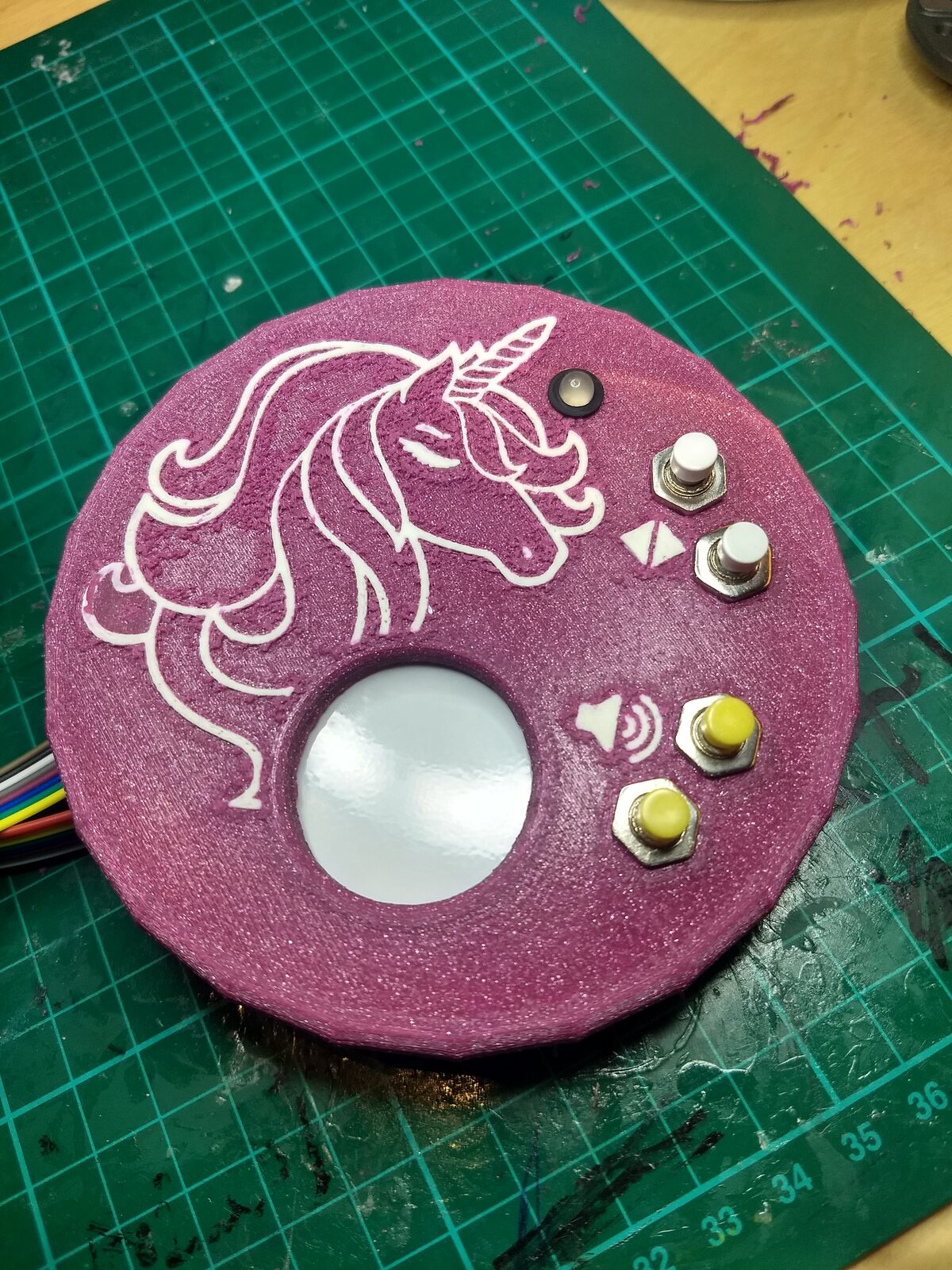
The lid: the four buttons with their symbols, the LED, in the middle the window for the tag.
| Button | Press briefly | Hold |
|---|---|---|
| louder, quieter | one step (5 %) | on in small steps (1 % every 0.2 s) |
| next | next track | – |
| back | to the start of the track; in the first 10 seconds of a track: to the previous track | 1 s: the album starts from the beginning |
| next + back together | – | 5 s: pair a headset (section 5.1) |
- The volume is limited (section 10).
- When the album has ended, "next" has no effect. "back" plays the last track, holding "back" for 1 s the whole album from the beginning.
- With a radio station "next" and "back" have no effect. The station is changed with the tag.
- Every press of a button acts at once. When pairing a headset, an album that plays therefore jumps by one track at most. To avoid that, take the tag off first.
3. LED
| LED | Meaning |
|---|---|
| red | The box is starting: after red comes magenta, then green. If the LED stays red, the box is stopped. |
| magenta | for a moment while the box starts (after red) or stops (before red) |
| green | ready, no tag on the box |
| green, blinking | no tag for 10 minutes – the box is still switched on |
| aqua | The album is being loaded, Spotify is connecting, or the radio station waits to connect again after the stream broke off. |
| green → aqua → blue, back and forth | The box fetches the album or the next track from the library and plays as soon as it is there (section 13), or a radio station is getting ready: blue as soon as it can be heard. |
| blue | playing |
| blue, blinking | The album has ended. |
| white/blue in turn | pause (section 4) |
| yellow | The tag is not linked to an album or a station. |
| yellow, blinking | A figure of an advent calendar whose day is not open yet (section 9.1). It plays by itself as soon as its day begins. |
| yellow/red in turn | The linked album or the linked station does not exist any more. |
| red, blinking | The album cannot be played (folder, playlist or MP3 files are missing or broken). A tag of Spotify: Spotify cannot play on this box (key, player or login missing, section 9). |
| blue, blinking quickly | The box searches for a headset (60 s at most). |
| white for 2 s | headset paired – then the colour from before again |
| red, blinking quickly for 3 s | no headset found or pairing failed – then the colour from before again |
| red, white, magenta, yellow in turn | The box is out of service because the library is too old for it. Only an administrator can fix that (section 13.4). |
The web page shows the same LED next to the logo.
4. Pause
During a pause playback halts, the position is saved, and the tag stays on the box. The LED changes between white and blue.
Pausing and resuming:
- play/pause on the headset
- ⏸ / ▶ on the web page (tab "Now")
- The box itself has no pause button. Taking the tag off and placing it again later has the same effect.
| During the pause | Effect |
|---|---|
| Play | continues at the same position |
| "next" | 1st press: continues at the same position. Only the 2nd press jumps to the next track. |
| "back" | jumps at once: to the start of the track, in the first 10 seconds to the previous track |
| hold "back" for 1 s | The album starts from the beginning. |
| take the tag off and place it again | continues at the saved position |
| louder, quieter | changes the volume only |
- With an album that has ended, play/pause changes nothing.
- With the radio, the pause ends the stream. Play, "next" or "back" connect again; the radio goes on live, there is no position.
- The box pauses by itself when the connection to the headset breaks (section 5.3).
5. Bluetooth headset
The box plays through a Bluetooth headset as soon as the paired headset is connected. The speaker is silent then. Principles:
- Automatic: If the headset is connected, it plays. Otherwise the speaker plays. There is no menu.
- Never surprisingly loud: If the connection breaks, the box pauses. It never changes to the speaker by itself.
- Hearing protection: The headset has a start volume and a maximum volume of its own.
- Exactly one headset: At most one headset is paired. A new one replaces the old one.
5.1 Pairing
- Put the headset into pairing mode. How that is done is in its manual (Sony WH-CH530: hold the middle button for about 5 s until it says "Pairing").
- Hold "next" and "back" on the box together for 5 s. After that the buttons can be released.
- The LED blinks blue quickly while the box searches (60 s at most).
- Result:
- white for 2 s: the headset is paired and connected.
- red, blinking quickly for 3 s: nothing found, or pairing failed. The previous headset stays paired.
Further rules:
- The box searches only for audio devices (headsets, speakers) in pairing mode. If it finds several, it takes the one with the strongest signal – as a rule the one right next to the box.
- The box itself is never visible. A foreign phone cannot pair with it.
- The same headset can be paired again, e.g. after a factory reset of the headset.
- The search cannot be cancelled; it ends by itself after 60 s. Playback and buttons go on as usual meanwhile.
- Pairing and unpairing is also possible on the web page: tab "Bluetooth", role
admin.
5.2 Every day
- Switching the headset on is enough. It connects itself to the box. After the box is switched on and when the headset loses the connection, the box also looks for it itself, for a minute.
- If it connects while an album plays, the album goes on in the headset (about 1 s back), and the speaker goes silent.
- The web page shows a headset symbol next to the LED as long as it is connected.
- If a second headset is to be used, it has to be paired anew. The first one does not connect any more after that.
5.3 Connection lost
Battery empty, out of range, switched off or unpaired:
| Situation | Behaviour |
|---|---|
| The headset is gone while an album plays | Pause, the position is saved. The speaker stays silent. |
| … the headset comes back within 10 minutes | It goes on in the headset. |
| … the headset comes back later | The pause stays. Play on the headset resumes. |
| … "next" or "back" on the box | It goes on through the speaker. The buttons act as during a pause (section 4). |
| … take the tag off and place it again | It goes on through the speaker. |
| The headset is gone, nothing plays | The speaker is active again. |
- If it was paused before the connection broke, it stays paused after reconnecting as well.
- "louder" and "quieter" on the box change only the volume of the speaker during this pause. They do not resume.
5.4 Buttons on the headset
| Button on the headset | Effect |
|---|---|
| Next, back | like the buttons of the box |
| Play/pause | pause and resume (section 4) |
| Louder, quieter | volume of the headset, limited to its maximum |
5.5 Volume of the headset
| Speaker | Headset | |
|---|---|---|
| Start volume | 50 %, when the box is switched on | 40 %, every time it connects |
| Maximum volume | 82 % | 75 % |
| The buttons of the box change | the speaker | the headset, as long as it is connected |
- The headset starts with its start volume every time it connects, never with the volume of last time.
- The values can be changed (section 10).
- The percentages refer to the headset: how loud 75 % is depends on the model. Set the maximum once with the headset on the ear.
5.6 Notes on headsets
- A phone nearby: Many headsets hold two connections at once (multipoint) and play whatever sent sound last. If the headset is also connected to a phone, its sounds can drown out the box. Then disconnect the headset on the phone.
- Limit in the app of the headset: Some headsets limit the volume themselves (Sony: "Max Volume Control" in the app "Sound Connect"). That acts in addition to the limit of the box. A factory reset of the headset resets it.
- LE Audio: The box uses classic Bluetooth. A setting like "LE Audio Priority" in the app of the headset must be switched off.
- Battery level: The web page shows it in the tab "Bluetooth" if the headset reports it.